Revolutionizing healthcare information technology: The Telemedicine Application by Sensiple
By
Author: Sensiple | Published on January 05, 2024 | 2 min read
| By Author: Sensiple |
| Published on January 05, 2024 |
| 2 min read |


Let’s Talk
In the rapidly evolving landscape of healthcare technology, Sensiple introduces a ground-breaking Telemedicine application that serves as a bridge between doctors and patients. Our innovative Telemedicine application seamlessly integrates advanced technologies to facilitate real-time consultations through voice, video, chat, and secure file sharing, ensuring timely and accurate medical advice for the patients. Our application is built on a robust foundation, ReactJS for frontend, while the backend utilizes NodeJS with Express, Azure Communication Services (ACS) for seamless communication, Azure Cloud Storage for secure file storage, MongoDB for efficient data storage, and, most importantly, our platform adheres to Health Insurance Probability and Accountability Act (HIPAA), guaranteeing the confidentiality and security of patient information.
HIPAA Compliance: Ensuring Data Security and Confidentiality
At Sensiple, we understand the importance of safeguarding sensitive health information. Our Telemedicine application adheres rigorously to the standards set by the Health Insurance Probability and Accountability Act (HIPAA). This commitment ensures that all the patient data, communication, and interactions within the platform meet the highest standards of security and confidentiality.
Technology Stack: Powering Seamless Integrations
- Frontend in ReactJS: For Intuitive and seamless user experience.
- Backend in NodeJS with Express: Ensures seamless data flow, providing responsiveness and reliability in every interaction.
- Real-time Communication via ACS: ACS takes centre stage, enabling real-time voice, video, and chat capabilities, transforming doctor-patient experiences into dynamic experiences.
- Storage with Azure Cloud Storage: Patient-Doctor shared files are securely encrypted and stored in Azure Blob Containers.
- Data Security with MongoDB: Store and manage user details, appointment information, and communication threads, ensuring secure and organized data management.
Working Process: From User Creation to Consultation
User Creation:
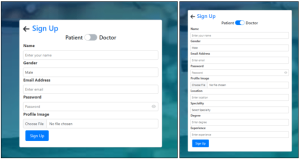
- Seamless Sign-Up: New users, whether doctors or patients, undergo a hassle-free signup process. A unique user communication ID and access token are generated and securely stored in MongoDB.
- Access Tokens for Security: Access Tokens are the keys to our security, authenticating users against Azure Communication Services ADKs. They act as secure gateways, granting authenticated access to call and chat threads within our applications, ensuring robust security and integrity.
- Role-based Access: Users are granted specific permissions based on their roles as doctors and patients during signup.
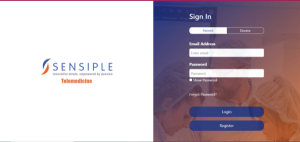
- Login and Forgot Password: A secure login process is implemented, and users can reset their passwords using the Forgot Password option along with OTP verification.
Booking Appointment:
- Choose Speciality and Doctor: After successfully logging in, users may quickly explore and pick their chosen speciality and doctor based on essential characteristics such as name, gender, experience, and the next open slot. “Confirm Appointment” is selected once all the details have been entered.
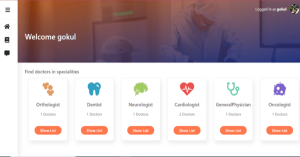
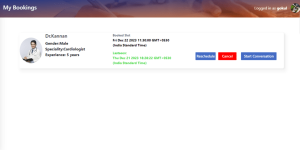
- Appointment Confirmation: Once the appointment is confirmed, a detailed email is sent to the registered email address, containing appointment specifics and a login link.
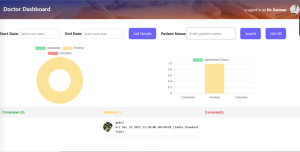
Doctor Dashboard:
Chat and Voice Thread Creation:
- Thread Initialization and Mapping: This involves generating a unique ACS thread ID for each booked patient appointment, and facilitating dedicated chat, voice, and video communication. The MongoDB database maintains a mapping table associating thread IDs with doctor and patient IDs for streamlined communication organization.
- Displaying Chat Threads: For displaying patient appointments and corresponding doctors, your application should present a list, allowing patients to initiate the chat interface upon selection. Clicking the “start conversation” button triggers the creation of a new chat thread or joining an existing one based on appointment details.
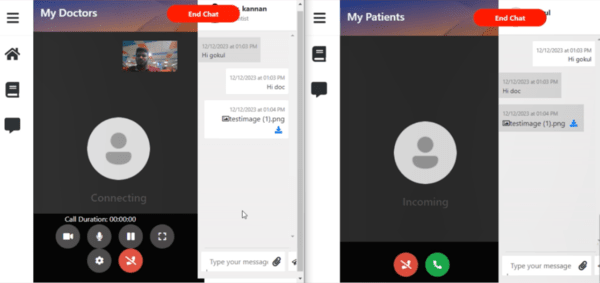
- Real-Time Chat Interface: In this, the messages are displayed with sender messages on the right (screenshot if possible) and receiver messages on the left, accompanied by timestamps. Enable users to send messages through a text input field and “send button”, utilizing the chat SDKs send messages functionality.
- File Upload: This functionality allows patients or doctors to upload files using a pin icon. The backend processes the file name, generates a Shared Access Signature (SAS) URL, and sends it to the frontend. Files are stored in Azure Storage with metadata like SAS URL, timestamp, and associated thread ID, ensuring encryption through ACS.
- File Retrieval: This functionality is facilitated by the users requesting a file through its SAS URL. The backend fetches the file from ACS, presenting it to the user for download. Limitations include a maximum file size of 50 MB, a maximum file length of 5, and the exclusion of (.exe and .sh) files.
- Real-Time Notifications: These are a priority, ensuring that the chat interface updates promptly with every sent file, enhancing the overall user experience.
Initiating ACS Calls (Patient to Doctor)
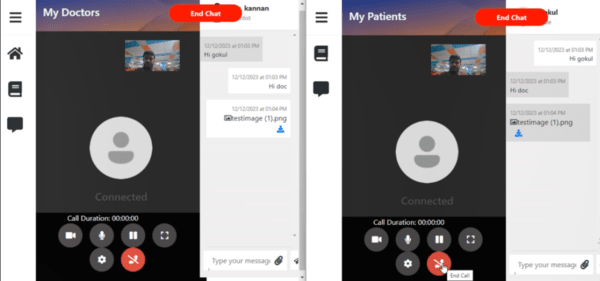
- Choose your doctor: Within the Telemedicine application, choose the doctor you’d like to consult with.
- Start the call: Click the “ACS Call” button to initiate a secure call request.
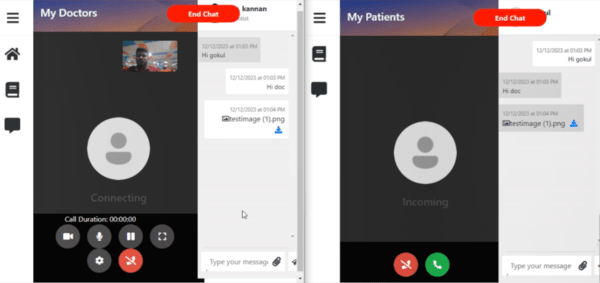
- Connect with the doctor: The application automatically creates a dedicated chat thread for your consultation with a unique ID. Your chosen doctor receives a real-time notification to alert them of your incoming call.
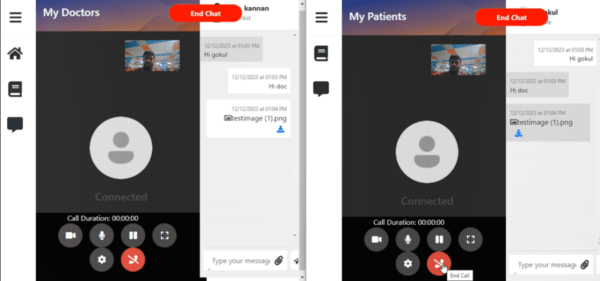
- Engage in seamless consultation: Upon the doctor’s acceptance, the call gets connected seamlessly enabling voice and video communication with additional features like mute/unmute, hold/unhold, video on/off, and call disconnect.
- End the consultation: Simply click the “End Chat” button. This will close the chat thread and end the call.
Initiating Teams Calls (Patient to Doctor)
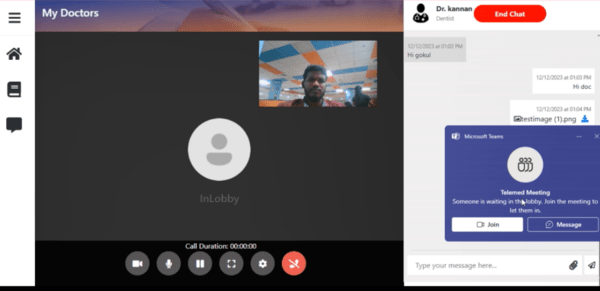
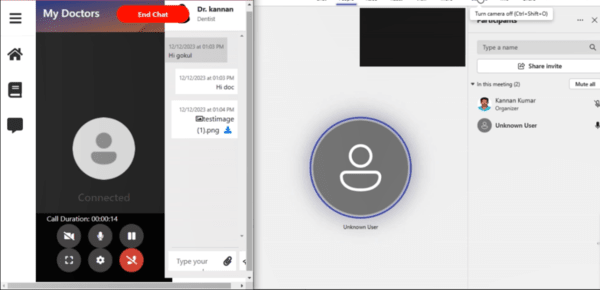
- Pick your doctor and go virtual: In the Telemedicine application, simply select the doctor of your choice, and initiate the consultation by clicking the “Teams Call” button.
- Meeting prep in the background: Our platform seamlessly creates a Microsoft Teams meeting and completes it with its own time and link. An invitation flies to the doctor, landing in their email or Teams notifications.
- Consultation: Once the doctor accepts the call, both patient and doctor are now into a secured voice/video consultation with features like mute/unmute and video on/off.
- Wrap it up: Simply click the “End Chat” to end teams and conclude the consultation.
Initiating ACS Calls (Doctor to Patient)
- Navigate to appointments: Head to the scheduled appointments section in our Telemedicine Application.
- Choose patient and confirm patient availability: The doctor selects the patient and our application checks if the patient is ready for consultation and will confirm the availability of the patient.
- Initiate the call: If the patient is available, the consultation will be started by clicking on “ACS Call”. The patient will receive an incoming call notification.
- Consultation: Upon acceptance, the doctor and patient will be instantly connected for a smooth audio or video consultation.
- Wrap it up: Simply click the “End Chat” to end teams and conclude the consultation.
“Taking charge of consultations. Empowering doctors to connect with patients on-demand, our ACS calls enable instant, secure conversations with just a click.”